


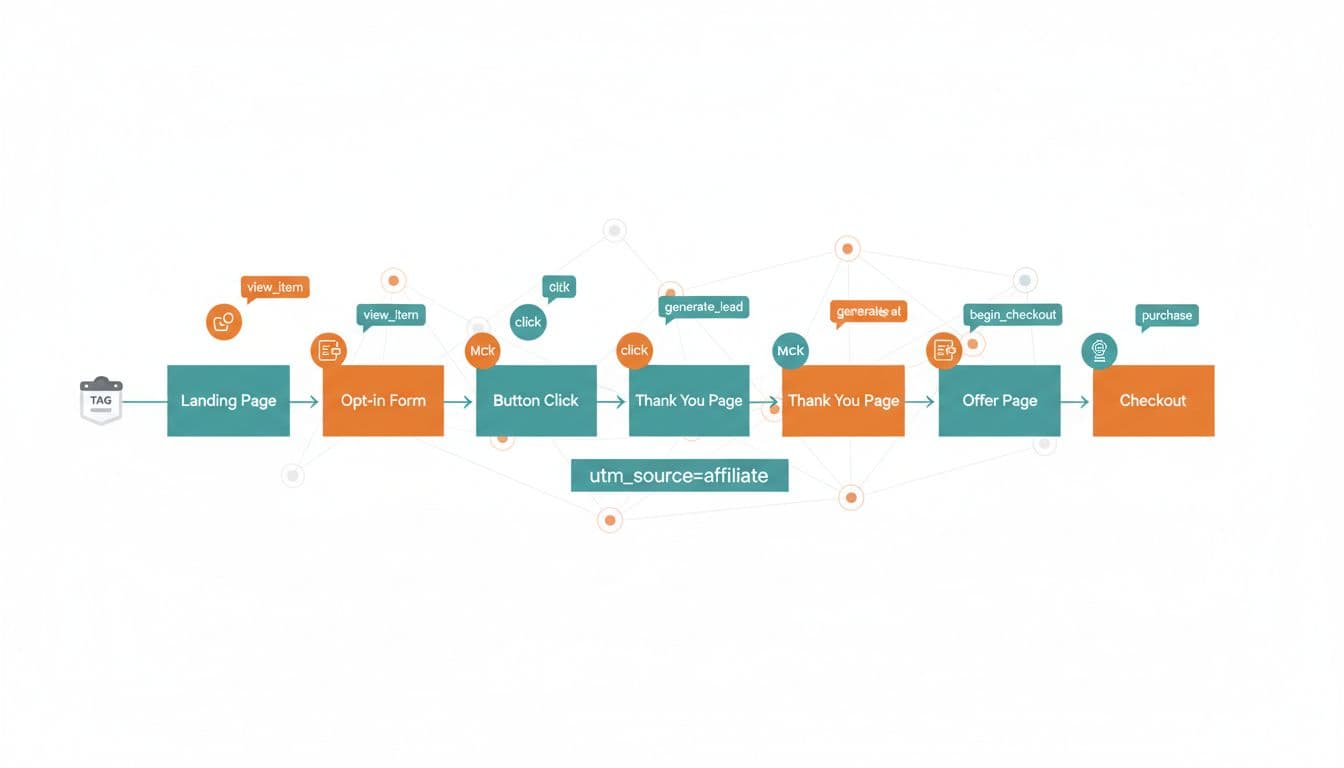
If you’re building a funnel to Make Money Online, you don’t need more guesswork. You need a scoreboard to improve your marketing ROI.
That’s what GA4 event tracking in Google Analytics 4 gives you. It tells you, in plain numbers, which pages pull their weight, which buttons get clicked, which opt-ins turn into follow-ups, and which offers actually produce sales.
This matters even more in a Home Base Business where traffic acquisition is mixed, time is limited, and mapping the user journey lets you grow a Side Hustle without living on your laptop. Simple tracking in Google Analytics 4 helps you stop “tinkering” and start improving one step at a time.
Map your funnel to GA4 events (recommended first, custom second)
Google Analytics 4 is built on an event-driven data model. A funnel is just a path. Events are how you “hear” footsteps on that path.
Start with Google Analytics 4’s recommended events when they fit, because they come with cleaner reporting and fewer naming mistakes. A good baseline for affiliate and network marketing funnels is:
- generate_lead for lead generation (email, SMS, webinar registration)
- begin_checkout when someone starts the buying process
- purchase when money changes hands (or a paid order is confirmed)
For button clicks, it depends on what the click does:
- If it sends people off-site (ClickBank, Amazon, a company enrollment page), Google Analytics 4 uses enhanced measurement to track outbound clicks automatically (often as a click event), and you can also track it in GTM with extra details like
link_url. - If it’s an on-page button (open a popup, scroll to a form, reveal pricing), use a custom event so you can name it clearly (example:
cta_click), and pass useful context.
A simple rule: use custom events when the action is important to your funnel, but doesn’t match a recommended name. If you want a quick overview of the recommended list, this guide to GA4 recommended events is a helpful reference.
This foundation is the key to accurate conversion tracking for network marketing links.
One more practical note. Network marketing traffic often hits a “bio link” style hub first. If you’re using that setup, track each button as its own event so you know which offer people choose. This ties in well with a network marketing bio page guide.
Set up GA4 event tracking in Google Tag Manager (simple, repeatable steps)

If GA4 is the scoreboard, Google Tag Manager (GTM) is the ref. It decides when an event “counts.”
Here’s a clean Google Tag Manager workflow that works for ClickFunnels, WordPress, and custom pages:
Step-by-step Google Tag Manager setup (the non-technical version)
- Install GA4 through GTM
Create a GA4 Configuration tag (or Google tag equivalent in your setup) and add your measurement ID. Fire it on All Pages. - Turn on the right built-in variables
In GTM, enable click variables like the Click URL variable, the Click Text variable, and page variables like Page URL (this makes your reports useful later). - Track opt-ins with
generate_lead
Best trigger options:- Thank-you page view (most reliable)
- Successful embedded form submit (only if you can confirm it truly submitted)
- Track button clicks that matter
Use a click trigger (like “Just Links” or “All Elements”) and filter it so it only fires on your key CTA button. - Track
begin_checkout
Fire it when someone clicks “Buy Now” or lands on a checkout page you control. - Track
purchaseon the confirmation page
Fire it on the final thank-you or order confirmation page (one time per order).
Event parameters to include (keep it simple)
Add event parameters so you can diagnose results later:
page_location: the URL where the event happenedlink_url: where the click is sending themvalue: the order value (or your best proxy)currency: likeUSDtransaction_id: unique order ID (critical for de-duping purchases)
Use DebugView to test the tags before going live. Setting this up correctly also helps with GDPR compliance by controlling data flow.
If you want deeper examples for affiliate and partner tracking, this walkthrough on tracking affiliate links with GA4 is solid and practical.
Tracking opt-ins, clicks, and sales in real funnels (thank-you pages, external checkout, cross-domain)
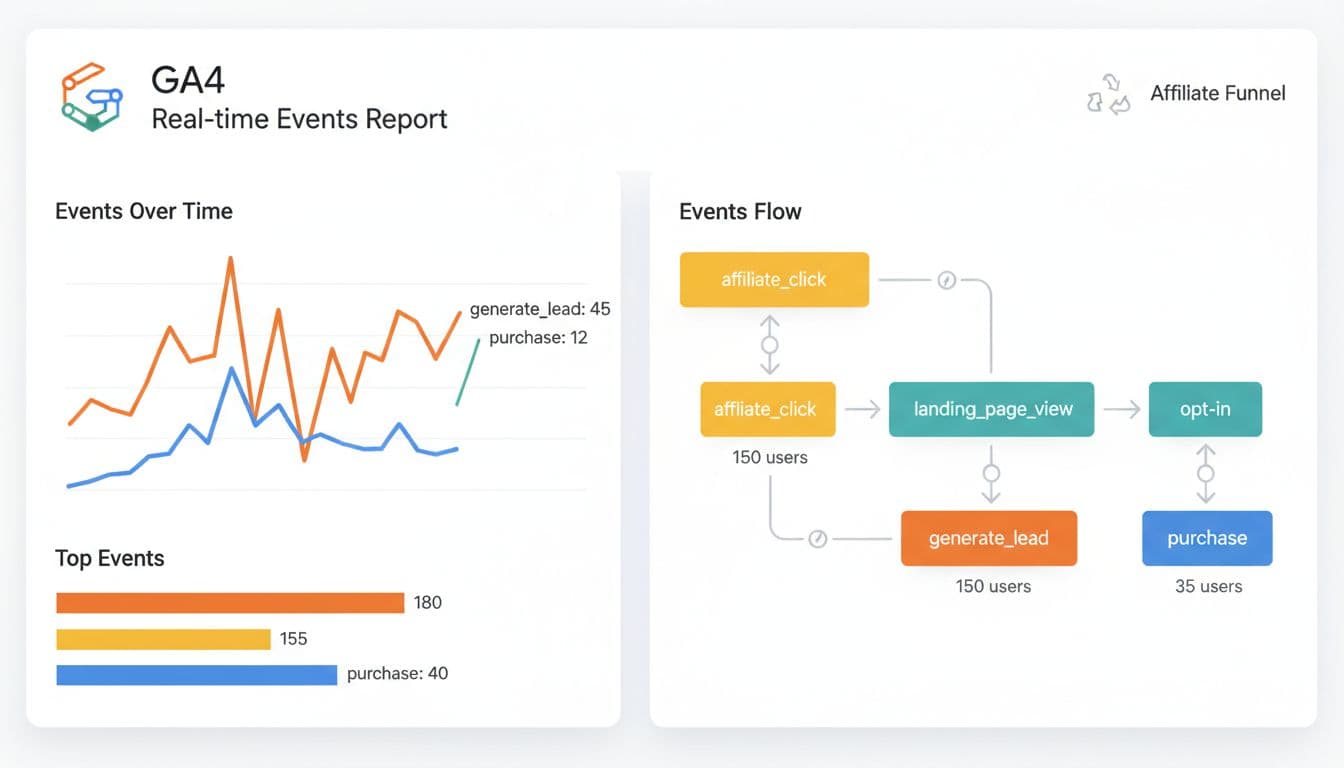
Most funnels aren’t “perfect.” You might have an embedded form, an off-site checkout, and a team enrollment page on another domain. That’s normal. The goal is to track the best signal at each step, then improve your weak spots.
Measurement plan (copy this structure)
Use this table as your baseline measurement plan for opt-in tracking, button click tracking, and affiliate link tracking, then adjust names and triggers to match your pages.
| Funnel step | Event name | Google Tag Manager trigger | Key parameters | Where it appears in Google Analytics 4 |
|---|---|---|---|---|
| Landing page view | page_view (auto) | GA4 config on all pages | page_location | Reports, Engagement, Pages |
| CTA button click | cta_click (custom) or click (outbound) | Click trigger on button/link | link_url, page_location | Reports, Engagement, Events |
| Opt-in completed | generate_lead | Thank-you page view OR confirmed form submit | page_location, (optional) lead_type | Events, Conversions (if marked), exploration reports |
| Checkout started | begin_checkout | Click “Buy Now” OR checkout page view | page_location, value, currency | Events, funnel exploration |
| Purchase confirmed | purchase | Order confirmation page view | transaction_id, value, currency, page_location | Monetization reports, Conversions |
Common scenarios (and what to do)
Thank-you page opt-in: The easiest win. Fire generate_lead on the thank-you page only. This avoids false leads from partial form fills.
Embedded forms: If the form submits without a page change, you can still track it, but only if you can confirm success. When in doubt, redirect to a thank-you page.
External checkout (you don’t control the payment site): Track begin_checkout when they click to leave your site. For purchases, the cleanest option is a confirmation page on your domain after payment (many platforms allow a return URL). If you truly can’t confirm purchases on your site, treat begin_checkout as your main conversion and compare it against your processor or affiliate network reports. For more advanced affiliate sales tracking setups, see this guide on tracking affiliate sales with GTM and GA4.
Cross-domain tracking: If your funnel jumps between domains you control (example: yourdomain.com to checkout.yourdomain.com), set up cross-domain tracking in Google Analytics 4 and make sure the same GA4 property is used across both. Test it by clicking through and confirming your session doesn’t “restart” mid-funnel.
Troubleshooting and avoiding double-counting (quick fixes)
If events don’t show up, check in this order: GTM Preview mode, Google Analytics 4 DebugView, data streams, then GA4 Realtime.
To avoid double-counting:
- Fire
generate_leadon either the thank-you page or the form submit, not both. - For purchase events, always send a unique
transaction_id, GA4 uses it to reduce duplicate revenue. - Use trigger filters so a tag can’t fire twice on the same page load.
This is the kind of simple Automation that keeps your reporting clean while you focus on your Team Build.
Conclusion
You don’t need a complex setup for conversion tracking to get clarity. Map your funnel steps to a few key events, implement them cleanly in Google Tag Manager, and check your numbers weekly in Google Analytics 4 like a routine. Consistent use of Google Analytics 4 alongside Google Tag Manager allows for long-term growth. As data accumulates, you can leverage predictive insights and evaluate different attribution models to see which traffic sources perform best over the 90-day plan. If you want a steady plan for improving those numbers without burning out, pair your tracking with a 90-day side hustle roadmap and focus on one bottleneck at a time. The real win is consistency, not complexity.